flutter-fastlane-one-click-beta
Deploy your Flutter app to the App Store and Google Play with ease using this step-by-step guide covering installation, project setup, Fastlane integration, and automated deployments with Automator.
What this skill does
# Flutter + Fastlane (One Click Beta)
## 1\. Install Flutter
[Download Flutter](https://flutter.io/get-started/install/)

## 2\. Create new Flutter Project
If you are pretty new to Flutter you can check out [this useful guide](https://flutter.io/get-started/codelab/) on how to create a new project step by step.
## 3\. Create App in iTunes Connect
If you are not familiar with iTunes Connect, check out [this article](https://clearbridgemobile.com/how-to-submit-an-app-to-the-app-store/) for getting started and setting up your first app for the App Store.
## 4\. Create App in Google Play
Setting up an app in the Google Play Console can be tricky, make sure to check out the [official reference](https://support.google.com/googleplay/android-developer/answer/113469?hl=en-GB) and [this guide](https://medium.com/mindorks/upload-your-first-android-app-on-play-store-step-by-step-ee0de9123ac0) if you are having trouble.

## 5\. Navigate to Project > ios and Setup Fastlane
[Reference](https://docs.fastlane.tools/getting-started/ios/setup/)
## 6\. Navigate to Project > android and Setup Fastlane
[Reference](https://docs.fastlane.tools/getting-started/android/setup/)
## 7\. Update Fastlane Fastfiles for iOS and Android and Change accordingly for each platform
* Make sure to change "YOUR PROJECT PATH" to the path to your project in Finder.
* Only copy the correct platform code for each Fastfile. For example, `default_platform(:ios)` for iOS and \`default\_platform(:android)1st for Android.
```
update_fastlane
default_platform(:ios)
platform :ios do
desc "Push a new beta build to TestFlight"
lane :beta do
increment_build_number(xcodeproj: "Runner.xcodeproj")
build_app(workspace: "Runner.xcworkspace", scheme: "Runner")
upload_to_testflight(skip_waiting_for_build_processing: true)
end
desc "Push a new release build to the App Store"
lane :release do
increment_build_number(xcodeproj: "Runner.xcodeproj")
build_app(workspace: "Runner.xcworkspace", scheme: "Runner")
upload_to_app_store(submit_for_review: true,
automatic_release: true,
skip_screenshots: true,
force: true,
skip_waiting_for_build_processing: true)
end
end
//YOUR PROJECT PATH > android > fastlane > Fastfile
default_platform(:android)
platform :android do
desc "Runs all the tests"
lane :test do
gradle(task: "test")
end
desc "Submit a new Build to Beta"
lane :beta do
gradle(task: 'clean')
increment_version_code
sh "cd YOUR PROJECT PATH && flutter build apk"
upload_to_play_store(
track: 'beta',
apk: '../build/app/outputs/apk/release/app-release.apk',
skip_upload_screenshots: true,
skip_upload_images: true
)
# crashlytics
end
desc "Deploy a new version to the Google Play"
lane :deploy do
gradle(task: 'clean')
increment_version_code
sh "cd YOUR PROJECT PATH && flutter build apk"
upload_to_play_store(
track: 'production',
apk: '../build/app/outputs/apk/release/app-release.apk',
skip_upload_screenshots: true,
skip_upload_images: true
)
end
end
```
* For Android `increment_version_code` install here.
Sometimes it will fail and you will need to run:
`bundle exec fastlane add_plugin increment_version_code`
* For iOS `increment_build_number` set up Generic Versioning by enabling the agvtool.
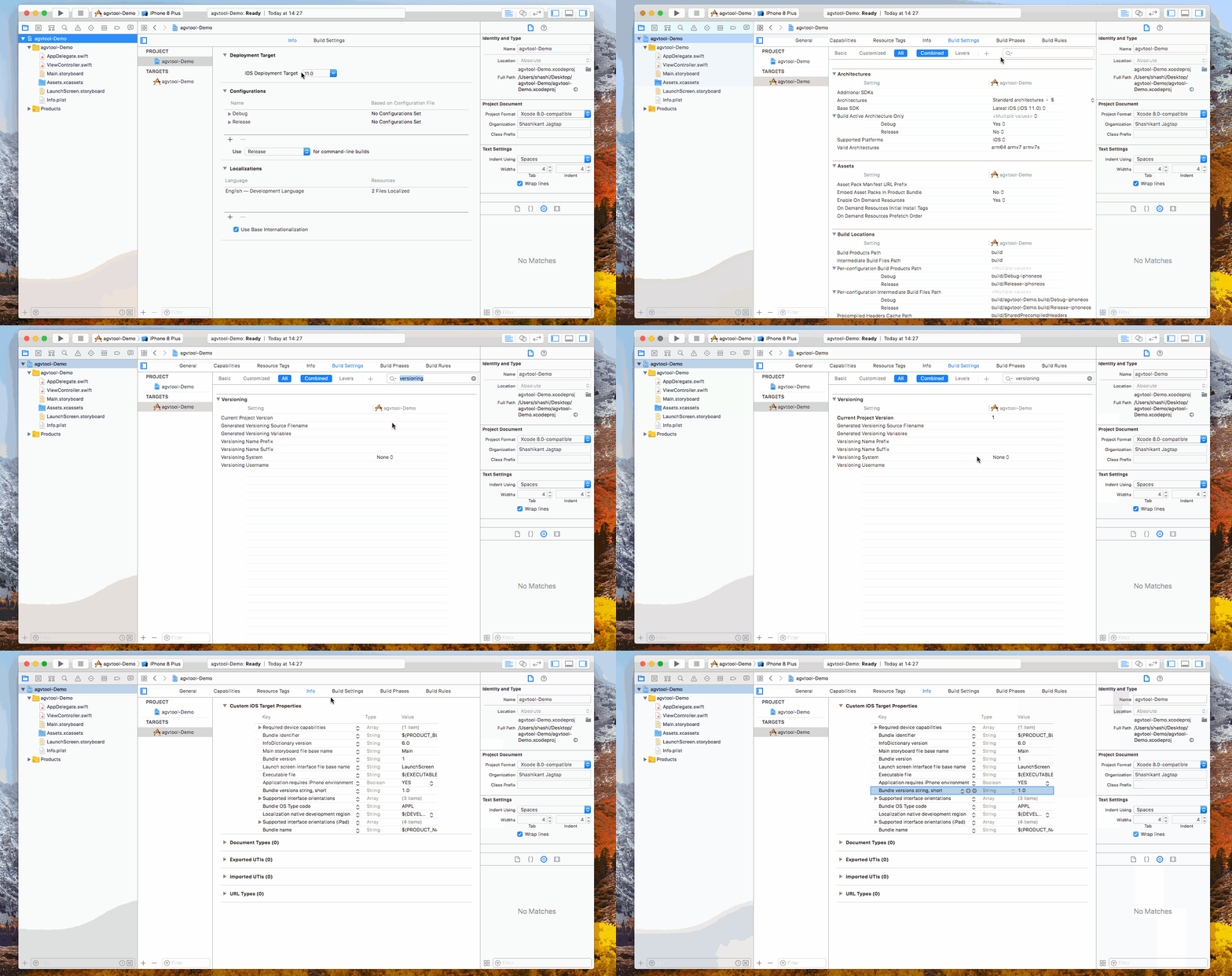
[Source](https://medium.com/xcblog/agvtool-automating-ios-build-and-version-numbers-454cab6f1bbe)
## 8\. Metadata (Optional)
* For iOS you can have Fastlane download all your apps existing metadata including screenshots from iTunes Connect. In terminal navigate to the project and run.
`fastlane deliver download_metadata && fastlane deliver download_screenshots`
* For Android you can use [Fastlane Supply](https://docs.fastlane.tools/actions/supply/).
## 9\. Open Automator
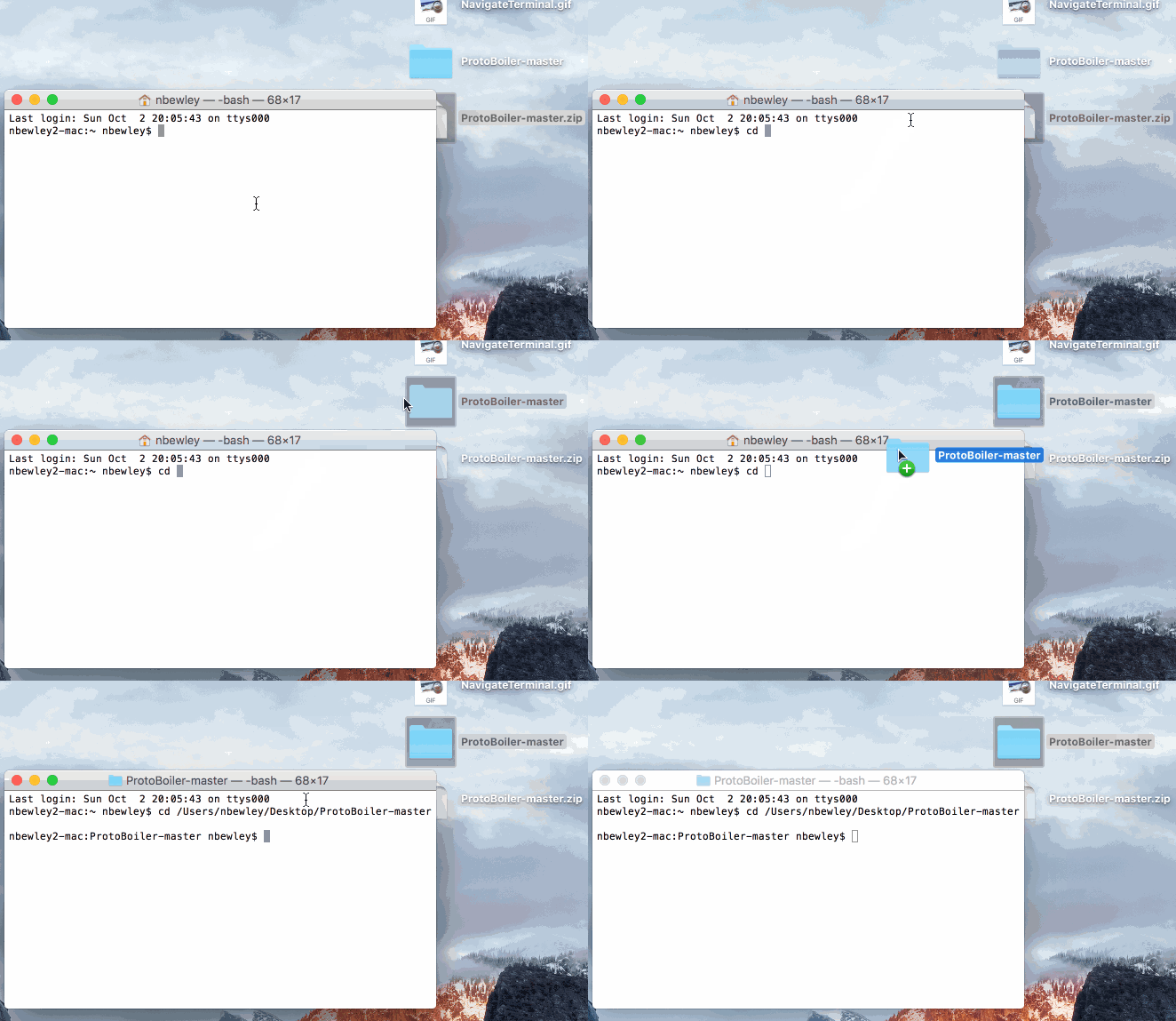
Right now everything is working just by the command line. If you navigate to your project in terminal by adding "cd " and dragging in the project folder and hitting Enter, you can type "cd ios && fastlane beta" or "cd android && fastlane beta" and both will run fastlane.
If you want to be able to submit your app to Google Play and the App Store with one click we will be using [Automator](http://www.applegazette.com/os-x/getting-started-automator-workflows-mac/). Create a new Automator Application. And Search for "Ask for Confirmation" and "Run AppleScript" and drag in.
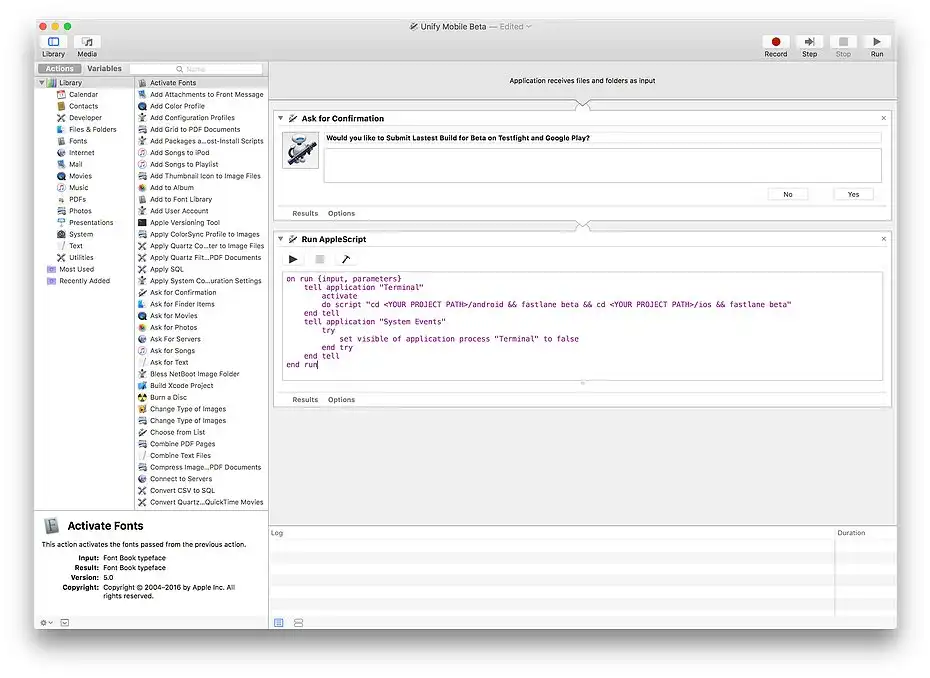
Here is the Script for beta and release. You will need to create a Automator Application for both Beta and Release for each app you want automated. Save it where ever you want and create an Alias to be but on the Desktop.
* Make sure to change **YOUR PROJECT PATH** to the path to your project in Finder
Hint: I have my automator application save in the Github Repo of my project for versioning and easy access for different projects.
```
//Beta
on run {input, parameters}
tell application "Terminal"
activate
do script "cd YOUR PROJECT PATH/android && fastlane beta && cd YOUR PROJECT PATH/ios && fastlane beta"
end tell
tell application "System Events"
try
set visible of application process "Terminal" to false
end try
end tell
end run
//Release
on run {input, parameters}
tell application "Terminal"
activate
do script "cd YOUR PROJECT PATH/android && fastlane deploy && cd YOUR PROJECT PATH/ios && fastlane release"
end tell
tell application "System Events"
try
set visible of application process "Terminal" to false
end try
end tell
end run
```
## 10\. Try It Out!
Everything should be working now. If you double click on the automator application you should get a confirmation pop up to release the app. The Script will run terminal in the background and you can stay focused on developing awesome flutter applications. If you want to see the progress on fastlane uploading your apps you can click on the terminal icon and the terminal window will reappear. Thanks for reading and please reach out for any questions you have!Related in Cloud & DevOps
appbuilder-action-scaffolder
IncludedCreate, implement, deploy, and debug Adobe Runtime actions with consistent layout, validation, and error handling. Use this skill whenever the user needs to add actions to an App Builder project, understand action structure (params, response format, web/raw actions), configure actions in the manifest, use App Builder SDKs (State, Files, Events, database), deploy and invoke actions via CLI, debug action issues, or implement patterns such as webhook receivers, custom event providers, journaling consumers, large payload redirects, action sequence pipelines, and Asset Compute workers. Also trigger when users mention serverless functions in Adobe context, action logging, IMS authentication for actions, or cron-style scheduled actions.
orchestrating-datacloud
IncludedSalesforce Data Cloud product orchestrator for connect→prepare→harmonize→segment→act workflows. Use this skill when the user needs a multi-step Data Cloud pipeline, cross-phase troubleshooting, or data space and data kit management. TRIGGER when: user needs a multi-step Data Cloud pipeline, asks to set up or troubleshoot Data Cloud across phases, manages data spaces or data kits, or wants a cross-phase sf data360 workflow. DO NOT TRIGGER when: work is isolated to a single phase (use the matching phase-specific skill), the task is STDM/session tracing/parquet telemetry (use observing-agentforce), standard CRM SOQL (use querying-soql), or Apex implementation (use generating-apex).
github-project-automation
IncludedAutomate GitHub repository setup with CI/CD workflows, issue templates, Dependabot, and CodeQL security scanning. Includes 12 production-tested workflows and prevents 18 errors: YAML syntax, action pinning, and configuration. Use when: setting up GitHub Actions CI/CD, creating issue/PR templates, enabling Dependabot or CodeQL scanning, deploying to Cloudflare Workers, implementing matrix testing, or troubleshooting YAML indentation, action version pinning, secrets syntax, runner versions, or CodeQL configuration. Keywords: github actions, github workflow, ci/cd, issue templates, pull request templates, dependabot, codeql, security scanning, yaml syntax, github automation, repository setup, workflow templates, github actions matrix, secrets management, branch protection, codeowners, github projects, continuous integration, continuous deployment, workflow syntax error, action version pinning, runner version, github context, yaml indentation error
sf-datacloud
IncludedSalesforce Data Cloud product orchestrator for connect→prepare→harmonize→segment→act workflows. TRIGGER when: user needs a multi-step Data Cloud pipeline, asks to set up or troubleshoot Data Cloud across phases, manages data spaces or data kits, or wants a cross-phase `sf data360` workflow. DO NOT TRIGGER when: work is isolated to a single phase (use the matching sf-datacloud-* skill), the task is STDM/session tracing/parquet telemetry (use sf-ai-agentforce-observability), standard CRM SOQL (use sf-soql), or Apex implementation (use sf-apex).
fabric-cli
IncludedUse this skill for Fabric.so CLI workflows with the `fabric` terminal command: diagnose/install/login, search or browse a Fabric library, save notes/links/files, create folders, ask the Fabric AI assistant, manage tasks/workspaces, generate shell completion, check subscription usage, produce JSON output, and use Fabric as persistent agent memory. Do not use for Microsoft Fabric/Azure/Power BI `fab`, Daniel Miessler's Fabric framework, Python Fabric SSH, Fabric.js, or textile/fashion fabric.
lark
IncludedLark/Feishu CLI skills: lark-cli operations for docs, markdown, sheets, base, calendar, im, mail, task, okr, drive, wiki, slides, whiteboard, apps, approval, attendance, contact, vc, minutes, event. Use when the user needs to operate Lark/Feishu resources via lark-cli, send messages, manage documents, spreadsheets, calendars, tasks, OKRs, deploy web pages, or any Feishu/Lark workspace operations.